
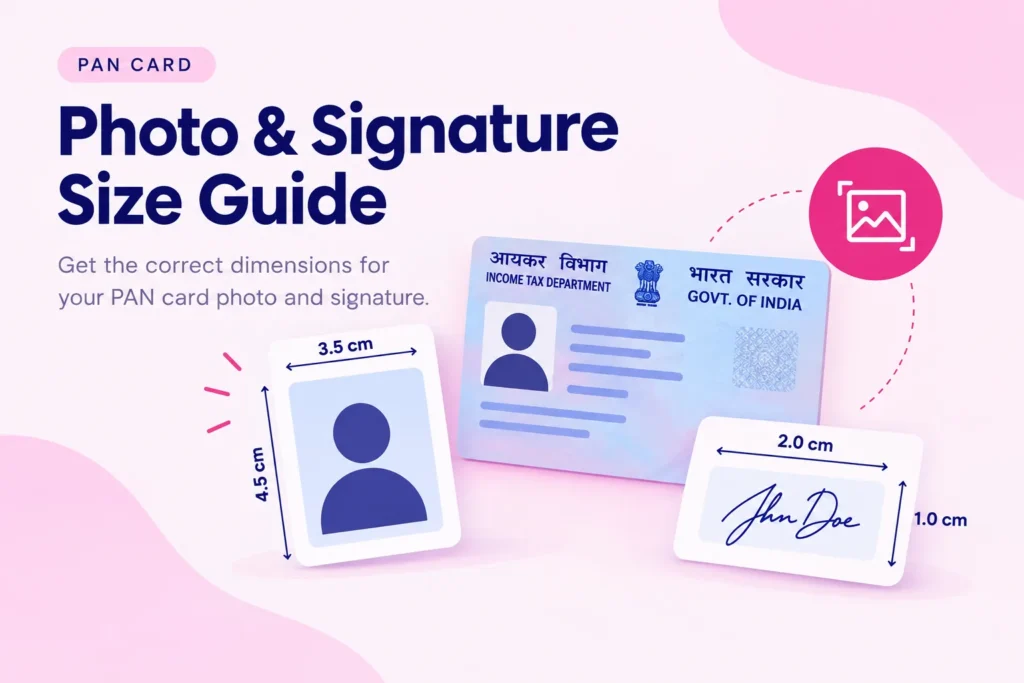
PAN Signature: JPEG, 200 DPI, 2 × 4.5 cm and Under 50 KB, Explained
Your signature upload keeps bouncing back, and the error message never really tells you why. So let us clear it up. Here you get the exact numbers the portal expects, what each one actually means, and how to fix every rejection in minutes.
Landscape orientation, wider than it is tall. The width always comes first at 4.5 cm; the height is the shorter 2 cm side.
- File format
- JPEG (.jpg)Only JPEG is accepted
- Dimensions
- 4.5 × 2 cmWidth × height, landscape
- Resolution
- 200 DPIWritten into the file header
- Pixel size
- 354 × 157 px4.5 × 2 cm at 200 DPI
- File size
- 10 – 50 KBBelow 10 KB often fails too
- Ink & paper
- Black ink, white paperPlain, unruled, no shadow
Now, let me be honest with you about something. Most applicants do not fail because their signature looks bad. They fail because a hidden number inside the file does not match what the portal wants. Therefore, once you understand these six values, rejection basically stops happening.
Throughout this guide, “the portal” means the Protean eGov Technologies system (the service formerly known as NSDL) that powers new PAN applications through Form 49A and Form 49AA, plus corrections and reprints. UTIITSL uses slightly different numbers, so I have covered that separately below.
The quick answer, in one line
For a new PAN application on the Protean portal, your signature must be a JPEG image, 4.5 cm wide by 2 cm tall, set to 200 DPI (which works out to 354 × 157 pixels), weighing between roughly 10 KB and 50 KB, signed in black ink on plain white paper.
That single sentence covers ninety percent of cases. However, each value hides a small catch, so let me walk you through them one by one. After all, the catches are exactly where applications get stuck.
The format: why only JPEG works
First, the portal accepts JPEG and nothing else for your signature. So even though PNG, WebP or HEIC might look identical on your screen, the upload check reads the file type and quietly rejects anything that is not a true .jpg.
Here is where people slip up. Renaming a “signature.png” file to “signature.jpg” does not convert it. Instead, it just changes the label while the file stays PNG underneath, and the portal sees straight through that. Consequently, you have to actually re-save the image as JPEG, not merely rename it.
The size: what “2 × 4.5 cm” really means
This is the value that confuses the most people, mainly because you will see it written two ways. Some pages say “2 × 4.5 cm” and others say “4.5 × 2 cm”. Both describe the exact same box, though. Your signature strip is 4.5 cm wide and 2 cm tall, which means it sits in landscape orientation, wider than it is tall.
Think of the physical PAN card for a second. Your signature prints in a short, wide strip near the bottom. Accordingly, the digital file matches that shape. A tall, portrait signature will look stretched or squashed once the system fits it into the strip, and manual reviewers flag that even when the automated check passes.
So whenever you crop, lock the shape to a wide rectangle. Never crop your signature as a square or a tall box, because the wrong aspect ratio is a silent, common cause of rejection.
The pixel math behind 354 × 157
Centimetres describe the print size, but the portal ultimately counts pixels. To convert one to the other, you need the DPI, since DPI literally means “dots per inch.” Here is the simple math, laid out so you can see exactly where 354 × 157 comes from.
Height: 2 cm ÷ 2.54 = 0.787 in × 200 DPI = 157 px
In other words, one inch equals 2.54 cm, and at 200 dots per inch each centimetre becomes about 79 pixels. Therefore a 4.5 × 2 cm signature lands at 354 × 157 pixels. If you would rather not do arithmetic, that is fine, because a good resizer applies these exact pixel dimensions automatically.
The 200 DPI rule and the trap that fails most uploads
Now we reach the single biggest reason “correct-looking” signatures still get rejected. Stay with me, because this one is subtle but important.
DPI is not something you can see. Rather, it is a small piece of information stored inside the file, in a section of the JPEG called the JFIF header. When you upload, the Protean system reads that header and checks whether it says 200. Crucially, it does not re-measure your pixels; it trusts the header.
Here is the problem. Your phone camera and most scanner apps save images at 72 DPI or 96 DPI by default. As a result, you can crop a signature to a perfect 354 × 157 pixels, and it will still fail, because the header still says 72. The pixels are right, yet the metadata is wrong, so the check rejects it.
To pass, the file’s header itself has to be rewritten to 200 DPI after resizing. This is exactly why a dedicated tool beats a generic photo editor: it patches the JFIF header so the portal reads the value it expects. You can check the value yourself, too. On Windows, right-click the file, open Properties, then Details, and look at “Horizontal resolution.” On a Mac, open the image in Preview and choose Tools, then Adjust Size.
“Under 50 KB” is only half the rule
Everyone knows the signature must stay under 50 KB. That part is easy. What almost nobody mentions, though, is that the portal also enforces a lower limit of roughly 10 KB. So your file has to land inside a window, not just below a ceiling.
Moreover, signatures create a funny problem here. A signature is mostly empty white space with a few thin ink strokes, so JPEG compresses it extremely well. Consequently, a clean signature often shrinks all the way down to 2 KB or 3 KB, which the portal then rejects as “too small” or “low quality.”
This is the signature size paradox: a photo is usually too big, whereas a signature is usually too small. Because of that, you cannot simply reuse your photo settings. Instead, aim to land your signature comfortably in the 15 KB to 40 KB range, which sits safely inside the window on both ends.
Ink, paper and background rules
The technical numbers matter most, yet the physical signature matters too, especially during manual verification. So follow these habits before you even pick up your phone.
- Use black ink. Black gives the strongest contrast for scanning, and it prints cleanly on the plastic card. Blue ink is usually accepted, but black is the safer choice.
- Sign on plain white paper. Avoid ruled or lined paper, because those lines show up in the scan and can trigger a rejection.
- Kill the shadows. Shadows add grey “noise,” which inflates the file size and lowers clarity. Bright, even light keeps the background clean.
- Fill the strip. Sign at a comfortable size so the strokes are thick and readable, not tiny in the middle of a big page.
How to prepare a valid PAN signature, step by step
Ready to do it properly? Follow this sequence and your signature will pass on the first attempt.
- Sign on white paper. Use black ink on plain, unruled white paper, and sign at a normal, confident size.
- Capture it flat. Scan it, or photograph it from directly above in good light so there are no shadows and no tilt.
- Crop to a wide strip. Trim tightly to a 4.5 × 2 landscape rectangle, keeping a little white margin around the strokes.
- Resize to 354 × 157 pixels. Set the exact pixel dimensions so the file matches 4.5 × 2 cm.
- Set the header to 200 DPI. Make sure the DPI metadata is written as 200, not left at 72 or 96.
- Save as JPEG at 10 – 50 KB. Export a true .jpg and tune the quality until the file lands in the safe 15 KB to 40 KB zone.
- Verify before uploading. Confirm the format, pixels, DPI and size, then upload with confidence.
Fix the most common signature rejection errors
Got a specific error on screen? Find it below, understand the real cause, and apply the fix.
| Error message | Real cause | How to fix it |
|---|---|---|
| Invalid dimension | Wrong aspect ratio or pixel size | Resize to exactly 354 × 157 px in landscape |
| Low resolution / Invalid image | DPI header reads 72 or 96, not 200 | Rewrite the JFIF header to 200 DPI |
| File size exceeds limit | File is larger than 50 KB | Compress the JPEG down into the 15–40 KB range |
| File too small / Low quality | File dropped below the ~10 KB floor | Raise JPEG quality to add “weight” back |
| Invalid format | File is PNG or HEIC renamed to .jpg | Re-save as a genuine JPEG, not a rename |
| Flagged in manual review | Blue ink, ruled paper or grey background | Re-sign in black ink on plain white paper |
UTIITSL PAN signature size, and how it differs from NSDL
India has two authorised PAN service providers, and they do not use identical rules. So before you resize anything, check which portal you are applying through, because a signature that passes on one can fail on the other.
Our resizer covers both portals. That said, the UTIITSL signature spec is stricter on resolution, so here it is at a glance.
- File format
- JPEG (.jpg)Black & white scan
- Pixel size
- 400 × 200 pxLandscape, about 4.5 × 2 cm
- Resolution
- 600 DPIThree times the NSDL value
- File size
- Under 60 KBA slightly higher ceiling
- Ink
- Black onlyOn plain white paper
- Applies to
- UTIITSL portalForm 49A / 49AA
Now compare the two portals side by side, so the differences jump out.
| Attribute | NSDL / Protean | UTIITSL |
|---|---|---|
| Dimensions | 4.5 × 2 cm | About 4.5 × 2 cm |
| Pixels | 354 × 157 px | 400 × 200 px |
| Resolution | 200 DPI | 600 DPI |
| Format | JPEG only | JPEG (black & white) |
| File size | 10 – 50 KB | Under 60 KB |
| Ink | Black preferred | Black only |
So what actually changes on the UTI side? Three things, mainly. First, UTIITSL asks for 600 DPI, which is three times the Protean requirement, so scan at that higher density from the start rather than upscaling a smaller file later. Second, the file can weigh a little more, right up to 60 KB. Third, UTI expects a clean black-and-white signature, so skip blue ink here altogether.
Otherwise, everything stays familiar: a wide landscape strip, plain white paper, and a true JPEG. Applying through UTI? Then let our UTI PAN card resizer load the 400 × 200 pixel, 600 DPI, sub-60 KB preset automatically.
Signature and photo: don’t mix the two up
This mistake is so common that it deserves its own warning. Your PAN photo and your PAN signature have completely different shapes, so you cannot use the same crop settings for both.
Your photo is portrait, at 3.5 × 2.5 cm (about 197 × 276 pixels). Meanwhile, your signature is landscape, at 4.5 × 2 cm (354 × 157 pixels). Naturally, if you reuse the photo preset on your signature, the upload fails even when the photo itself sailed through. When in doubt, prepare each one separately.
Do’s and don’ts at a glance
Do this
- Sign in black ink on plain white paper
- Crop to a 4.5 × 2 landscape strip
- Set the file to exactly 354 × 157 px
- Write the DPI header as 200
- Keep the JPEG between 15 and 40 KB
- Verify all four values before uploading
Avoid this
- Renaming a PNG to .jpg
- Using ruled or coloured paper
- Cropping a square or tall signature
- Leaving the DPI at 72 or 96
- Letting the file shrink under 10 KB
- Reusing your photo settings
Frequently asked questions
What is the correct signature size for a PAN card?
On the NSDL (Protean) portal, your signature must be a JPEG measuring 4.5 cm wide by 2 cm tall, which equals 354 × 157 pixels at 200 DPI, with a file size between about 10 KB and 50 KB.
Why does my PAN signature keep getting rejected?
Usually the DPI is the culprit. Phone and scanner apps save at 72 DPI, while the portal reads the file header and demands 200 DPI. Other frequent causes are a wrong landscape shape, a file over 50 KB, a file under 10 KB, or a PNG renamed as JPEG.
How do I reduce my PAN signature to under 50 KB?
Save the image as JPEG and lower the quality setting until the size drops below 50 KB. Take care not to overshoot, though, because falling under 10 KB triggers a “too small” error. Aim for 15 KB to 40 KB. A signature resizer tunes this automatically.
What DPI should a PAN signature be?
The Protean portal expects 200 DPI. Importantly, DPI lives in the JPEG’s header, not in how the image looks, so you must set the header value to 200 after resizing rather than trusting the on-screen appearance.
Can I use blue ink for my PAN signature?
Blue ink is generally accepted, but black ink is the safer choice. Black scans with higher contrast, prints more clearly on the physical card, and is less likely to be flagged during manual review.
Is the PAN signature 2 × 4.5 cm or 4.5 × 2 cm?
They describe the same box. Your signature is 4.5 cm on the wide side and 2 cm on the short side, so it sits in landscape orientation. Some documents list height first and width second, which is why you see both orderings.
Can I upload a PNG signature to the PAN portal?
The NSDL (Protean) portal accepts JPEG only. UTIITSL’s signature guidance also specifies JPEG, in black and white. Either way, convert your file to a genuine JPEG before uploading, and you stay safe on both portals.
What is the PAN signature size for UTIITSL?
For the UTIITSL portal, prepare a JPEG of about 400 × 200 pixels, scanned at 600 DPI, kept under 60 KB, and signed in black ink on plain white paper.
Why does UTIITSL need 600 DPI when NSDL needs 200?
The two providers simply set different scanning standards. UTIITSL asks for a denser 600 DPI scan, so capture the signature at that setting from the start. Upscaling a low-resolution file afterwards never adds real detail, so it will not help.
Do NSDL and UTI use the same signature specifications?
No. NSDL (Protean) wants 354 × 157 px JPEG at 200 DPI, sized 10–50 KB, whereas UTIITSL wants about 400 × 200 px JPEG at 600 DPI, kept under 60 KB. Always match the specs of the portal you are applying through.
Sources and references
We built and verified this guide against the official guidelines published by India’s authorised PAN service providers and the Income Tax Department.
- Protean eGov Technologies (formerly NSDL) — PAN services and application guidelines: proteantech.in/services/pan
- Income Tax Department of India — official portal: incometax.gov.in
- UTI Infrastructure Technology and Services Limited (UTIITSL) — PAN services: pan.utiitsl.com
PanCardResizer.net is an independent free tool and is not affiliated with, endorsed by, or connected to the Income Tax Department, Protean eGov Technologies (NSDL), or UTIITSL. Specifications can change, so always confirm the current requirements on the official portal before you submit your application. This page is for general guidance only.